Mobile Proxies for Antidetect Browsers: How to Set Up Consistent Profiles
Antidetect browsers keep profiles separate, but the proxy decides which IP and network each profile uses. This guide shows how to add a mobile proxy in Multilogin, GoLogin and AdsPower, which settings should follow the connection, how to plan ports and sticky sessions, and what a dedicated mobile connection can and cannot guarantee.

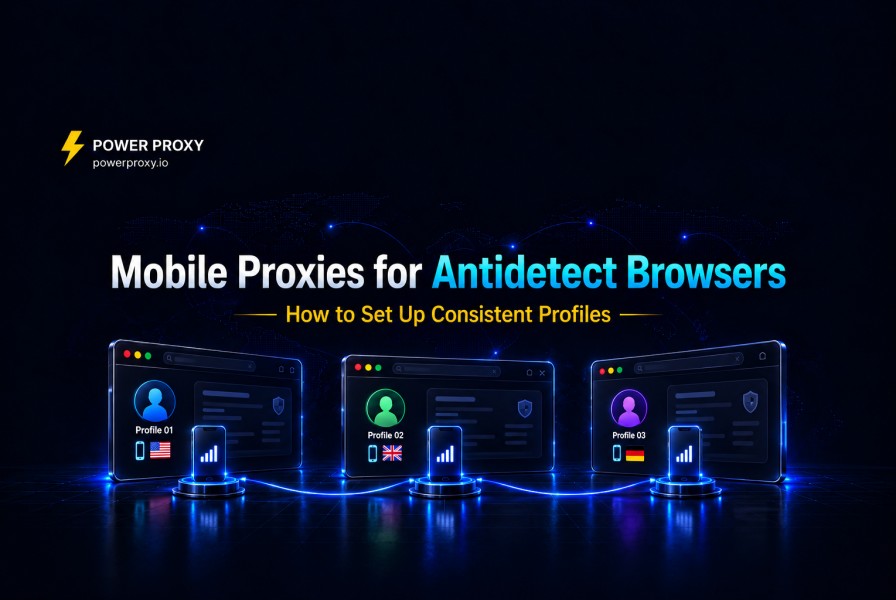
Antidetect browsers such as Multilogin, GoLogin and AdsPower keep browser profiles separate, with their own cookies, storage and fingerprint settings. Assigning a proxy also controls the public IP used by that profile’s proxied traffic.
A reliable setup needs both layers to make sense: the browser profile and the network connection. Start with a proxy connection you can control, configure the browser’s IP-dependent settings, then check the result from inside the profile.
This guide covers setup in three browsers, port and session planning, and the limits of what a dedicated mobile connection can guarantee.
What an Antidetect Browser Does
Isolated profiles
Isolated profiles keep cookies, browsing history and other local data separate, as described in the GoLogin profile settings. This reduces accidental mixing of client sessions, but does not prevent a platform from connecting accounts through other signals.
Treat a profile as a separate working environment. Keep each client’s login and browsing data in the intended profile rather than switching several clients through one profile.
Browser level fingerprint values
Antidetect browsers manage values such as User-Agent, screen size, fonts, canvas, WebGL, timezone and language. The Multilogin fingerprint settings include managed, custom and real-value modes, with different options for rendering signals. Start with the vendor’s recommended defaults rather than manually changing every value.
What depends on the proxy and what does not
Some settings depend on the connection, while others describe the user or device. Use the browser’s proxy-aware defaults where available, and treat IP geolocation as an estimate:
| Profile value | Where the website reads it | Should follow |
|---|---|---|
| Timezone | JavaScript date and time APIs | A timezone consistent with the intended location |
| Geolocation | The browser Geolocation API, if permission is granted | An approximate location consistent with the proxy |
| WebRTC addresses | WebRTC connection candidates | The proxy IP, through a proxy-aware WebRTC mode |
| Languages | Accept-Language header and navigator values | The user the profile represents |
| User-Agent and platform | HTTP headers and navigator values | The device the profile represents |
| Screen, fonts, canvas, WebGL, audio | JavaScript rendering and device APIs | The device the profile represents |
For ordinary HTTP CONNECT and SOCKS5 TCP connections, the destination sees the proxy side of the TCP connection. The browser still contributes other signals, such as its TLS and application behavior. Browser Fingerprinting Explained and TCP/IP Fingerprinting: What Your Proxy's Network Stack Reveals cover the distinction.
Why the Proxy Matters for Every Profile
IP dependent settings follow the proxy
Multilogin’s Masked settings align timezone, approximate geolocation and WebRTC IP information with the proxy. GoLogin also offers settings based on the external IP. Check these after adding a proxy and again if the connection changes.
Why WebRTC needs attention
WebRTC supports browser calls and peer-to-peer connections. Its network discovery can expose an address outside a conventional application proxy, as RFC 8828 explains. Use the browser’s proxy-aware mode, or disable WebRTC when the workflow does not need it. Disabling it can break calling and screen-sharing features.
Separate proxy connections for separate profiles
Assigning a separate proxy connection to each client profile makes rotation and troubleshooting easier. However, separate endpoints or dedicated SIMs do not guarantee different public IPv4 addresses: carrier CGNAT can put several connections behind the same address. If distinct exit IPs are a requirement, check the addresses actually in use.
Keep it stable once accounts are logged in
Avoid unnecessary proxy or fingerprint changes during an active login. A sticky session aims to preserve the connection’s IP, but carrier reconnects or network events can still change it. Check the current IP when a session drops or an account asks for verification.
Why Mobile Proxies Fit Antidetect Profiles
A carrier network behind every profile
A mobile proxy routes traffic through a carrier-assigned address. Mobile networks commonly use Carrier-Grade NAT, so multiple subscribers may share one public IPv4 address. That network context differs from a hosting address, but it does not make every request trusted. What Is CGNAT? explains the shared addressing.
Dedicated ports and shared pools
PowerProxy offers dedicated ports and shared pools. A dedicated port reserves the modem and SIM for your use, giving you control over that connection’s workload and rotation. The carrier can still share its public IP with other subscribers. Shared pools suit work where changing exits matters more than maintaining one session. See Shared vs Dedicated Mobile Proxies for the operational differences.
Sticky sessions and rotation on demand
With PowerProxy, you can use sticky sessions or trigger rotation manually, on a schedule or through the API. Avoid scheduled rotation during a logged-in workflow. Reconnecting asks the carrier to allocate an address; it does not guarantee a new or previously unused IP.
A network layer that matches the profile OS
PowerProxy’s Passive OS Fingerprint option simulates Android, iOS, Windows or macOS TCP/IP characteristics. Where available, choose a setting consistent with the browser profile’s intended OS. Passive OS detection is an estimate affected by the network path, so use it as a diagnostic signal rather than a pass-or-fail guarantee.
PowerProxy supports HTTP, HTTPS and SOCKS5 connections with username and password authentication. Use the protocol and credentials provided for your port.
Proxy Support in Popular Antidetect Browsers
The following summarizes the vendors’ documented options. Setting names can change between versions:
| Browser | Proxy protocols | Proxy check | IP-based settings |
|---|---|---|---|
| Multilogin | HTTP, HTTPS, SOCKS5 | Yes, runs automatically | Masked mode matches timezone, geolocation, and WebRTC to the proxy |
| GoLogin | HTTP, SOCKS4, SOCKS5 | Yes, "Check Proxy" button | WebRTC "Based on IP" mode; timezone matched to the proxy IP |
| AdsPower | HTTP/HTTPS, SOCKS5, SSH | Yes, "Check Proxy" button | Supports IPv4 and IPv6 proxies; fingerprint preferences set per profile |
Antidetect browsers update their features often. Check the current documentation of the browser you use before relying on a specific setting.
How to Add a Mobile Proxy in Each Browser
Multilogin
GoLogin
AdsPower
The proxy string
The combined credential format is commonly written as follows. Some browser versions use separate fields instead:
host:port:username:password
proxy.example.com:8000:your_username:your_password
This is a placeholder, not a live PowerProxy endpoint. Replace the host, port and credentials with the values shown for your connection.
Configure the Profile Around the Proxy
Let IP based settings follow the proxy
Leave timezone and geolocation on the browser’s IP-based or masked defaults when appropriate. Use its proxy-aware WebRTC mode. If automatic detection fails, check the proxy connection first; enter manual values only when you have verified the intended IP and location.
Set the language to match the user
Language is a user preference, not proof of location. Multilogin uses English by default in its Masked language mode. Select the languages your profile’s user would actually use; a Dutch IP does not require Dutch as the browser language.
Match the OS fingerprint
Choose the intended OS when creating the browser profile. If your proxy has an OS fingerprint setting, align it with that choice. A matching checker result is useful evidence of consistency, but does not verify the whole fingerprint or predict a website’s decision.
Decide everything before the first login
Set the profile’s main values before the first login and avoid changing them without a reason. If you must change the connection or device settings, expect that some platforms may ask for verification.
Planning Ports and Sessions
Profiles using the same dedicated port normally share that modem’s current exit address for the same IP family and destination path. Rotating that connection can affect all of them. Separate ports let you control their connections independently, but the carrier may still assign the same public IPv4 address through CGNAT.
How long to hold an IP depends on the workflow:
| Workflow | Port type | Session |
|---|---|---|
| Logged-in account management | Dedicated port per profile | Sticky; monitor for carrier or network changes |
| Market or QA testing in one region | Dedicated port per test profile | Keep the connection stable during the test |
| Checking public pages, ads, or prices | Shared pool or dedicated port | Rotate between independent checks if needed |
Use a dedicated port when a workflow needs independent control over a connection. For public-page checks, decide whether rotation is useful based on the task and the target’s limits; it is not a reason to ignore rate limits.
Example Three Dutch Marketplace Profiles
Consider an agency that manages storefronts for three Dutch clients, each in its own antidetect browser profile:
This gives the agency independent control over three connections. It does not guarantee three exclusive public IPs or prevent a platform from identifying related accounts.
Platform terms of service still apply. Antidetect browsers and mobile proxies keep profiles separate and consistent. They do not authorize activity that a platform prohibits, and whether a workflow is allowed depends on applicable law and the platform's terms.
How to Verify a Profile
After the built-in proxy check passes, open the following pages inside the profile itself:
Review timezone and language in the profile settings, then test the actual authorized workflow. Record the date, browser version, port and observed exit IP so you can investigate later changes. A successful checker result does not guarantee account acceptance or complete isolation.
Dedicated 4G and 5G Mobile Proxies for Antidetect Browsers
At PowerProxy, we provide dedicated mobile connections with rotation control and HTTP, HTTPS and SOCKS5 support. Choose the location and port that fit your workflow, then verify the connection inside your browser profile.
No credit card required · 4.7 / 5 on Trustpilot ★★★★★ · 1,200+ businesses
Narmin Kamilsoy
Contributing author sharing insights and stories on our blog.